Your First Template
Quick Start shows the whole idea in five minutes. This page goes slower. It starts from a tile card you already have, turns it into a template one change at a time, and explains every line on the way. Nothing here needs more than the card installed and one light.
The card you already have
Most dashboards have a tile like this one, written out in the card’s own YAML:
type: tile
entity: light.living_room
name: Living Room
features:
  - type: toggle
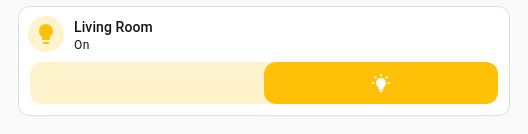
Add a second light and you copy the whole block and change two lines. Add a feature later and you edit every copy. A template is that block written once.
Where templates are written
Templates go at the top of the dashboard’s YAML, next to views:. To see that YAML, click
the pencil at the top right of the dashboard, then the three-dot menu, then
Raw configuration editor. The auto-generated Overview dashboard has no YAML of its own
until you take it over (the three-dot menu, Edit dashboard, then Take control), so a
new dashboard from Settings → Dashboards is the easier place to practise.
The same card as a template
Paste this above views: in the raw configuration editor and save:
decluttering_templates:
  light_tile:
    card:
      type: tile
      entity: '[[light]]'
      name: '[[name]]'
      features:
        - type: toggle
Line by line:
decluttering_templates:is where every template on the dashboard lives.light_tile:is the template’s name. You choose it, and you will type it on each card that uses it.card:holds the card, exactly as you wrote it before.'[[light]]'and'[[name]]'are placeholders. The two values that changed between copies are now variables, and each card fills them in. A placeholder that stands alone on a line is quoted, because[would otherwise start a YAML list.
Saving changes nothing on screen yet. A template on its own draws nothing; it waits for a card to use it.
Using it twice
Back in the view, replace the tile with two decluttering cards. Click + Add card, search for declutter, pick Decluttering Card Plus, press Show code editor, and paste the first block. Repeat for the second.
type: custom:decluttering-card-plus
template: light_tile
variables:
  - light: light.living_room
  - name: Living Room
type: custom:decluttering-card-plus
template: light_tile
variables:
  - light: light.kitchen
  - name: Kitchen
template: names the template. variables: gives each placeholder its value, one - name: value
line per variable. The card builds the tile with those values put in.
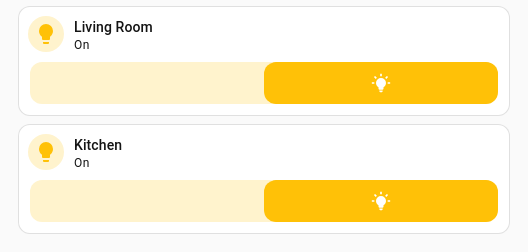
They look exactly like the tile you started with. The difference shows when you change the
template: add icon: mdi:ceiling-light under card: in the raw configuration editor, save,
and both tiles pick it up.
A value a card can leave out: default:
Every card so far passes name. A template can carry a fallback for a variable, so a card
that does not pass it still builds:
decluttering_templates:
  light_tile:
    card:
      type: tile
      entity: '[[light]]'
      name: '[[name]]'
      features:
        - type: toggle
    default:
      - name: Light
default: sits beside card:, not inside it, and is written the same way as variables:
on a card. Now a card can pass name or not:
type: custom:decluttering-card-plus
template: light_tile
variables:
  - light: light.living_room
  - name: Living Room
type: custom:decluttering-card-plus
template: light_tile
variables:
  - light: light.kitchen
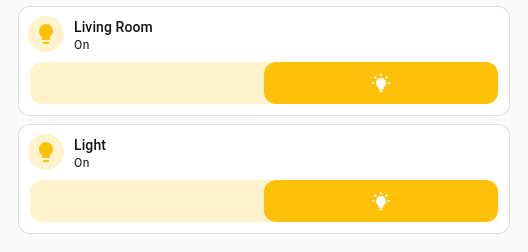
A value the card passes wins over the default. A variable that gets no value from either is
left as the text [[name]] on the card, which is how you spot one you forgot.
Variables has the rest, including defaults that build on
other variables.
The same thing in the editor
You do not have to type the card’s YAML. In edit mode, + Add card and a search for declutter finds Decluttering Card Plus in the card picker:
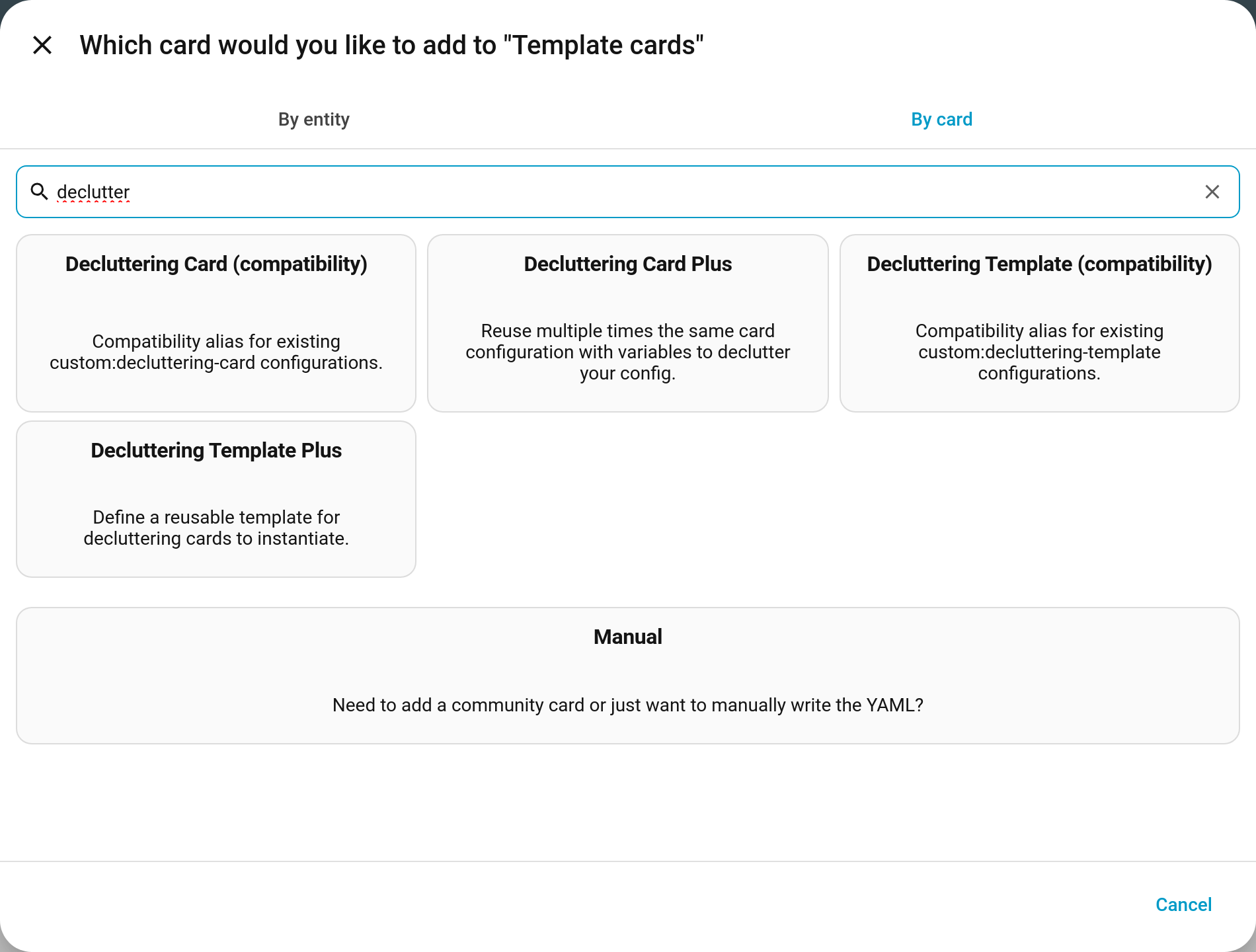
Its editor is a form:
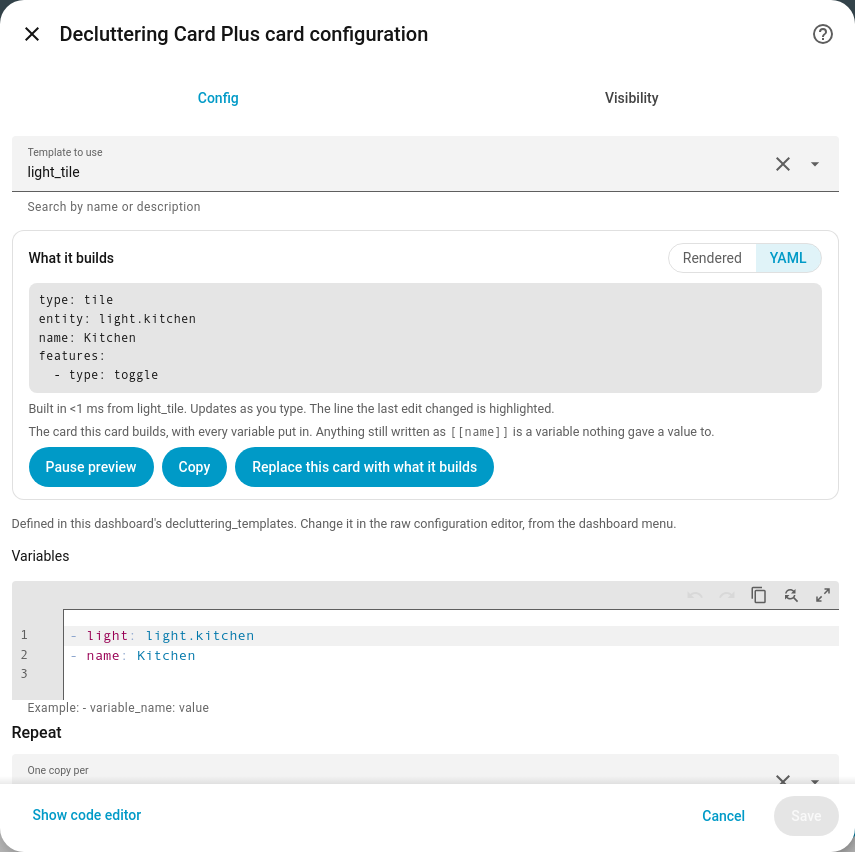
- Template to use lists every template on the dashboard. From v2.8.0 it is a search box as well: type part of a name to narrow the list.
- What it builds is the finished tile, as it renders or as YAML, updated as you type.
- A line underneath says where the template is defined, so you know where to go to change it.
- Variables is the same
- name: valuelist as above. Withdefault:in the template, you can leavenameout here too. - Repeat and the layout fields below it can be ignored for now. They make one template build several cards; Repeating a Template covers them.
The Variables box is YAML because the template has not said what its variables are. Tell it,
with a variables: list on the template, and the box becomes an entity picker for light
and a text field for name. Describing Variables shows how, and it
takes a few lines.
Where to go next
- Recipes 1 to 4 are the next step up: a room card, turning a card you already have into a template, a scene button and a tidy Entities card.
- Defining Templates is the full story on what a template can hold.
- Variables covers defaults, optional values and asking Home Assistant for an entity’s name or icon.
- Share your templates on GitHub is where people post finished templates. Light tile with a brightness slider is this page’s tile taken to the finish, with a brightness slider and variables described, ready to install from the card editor’s Share tab.