Visual Editors
Both cards have point-and-click editors, so you can build and use templates without writing YAML by hand.
The template editor
Add a Custom: Decluttering Template Plus card to a view (+ Add card, search declutter). Its editor has a tab strip:
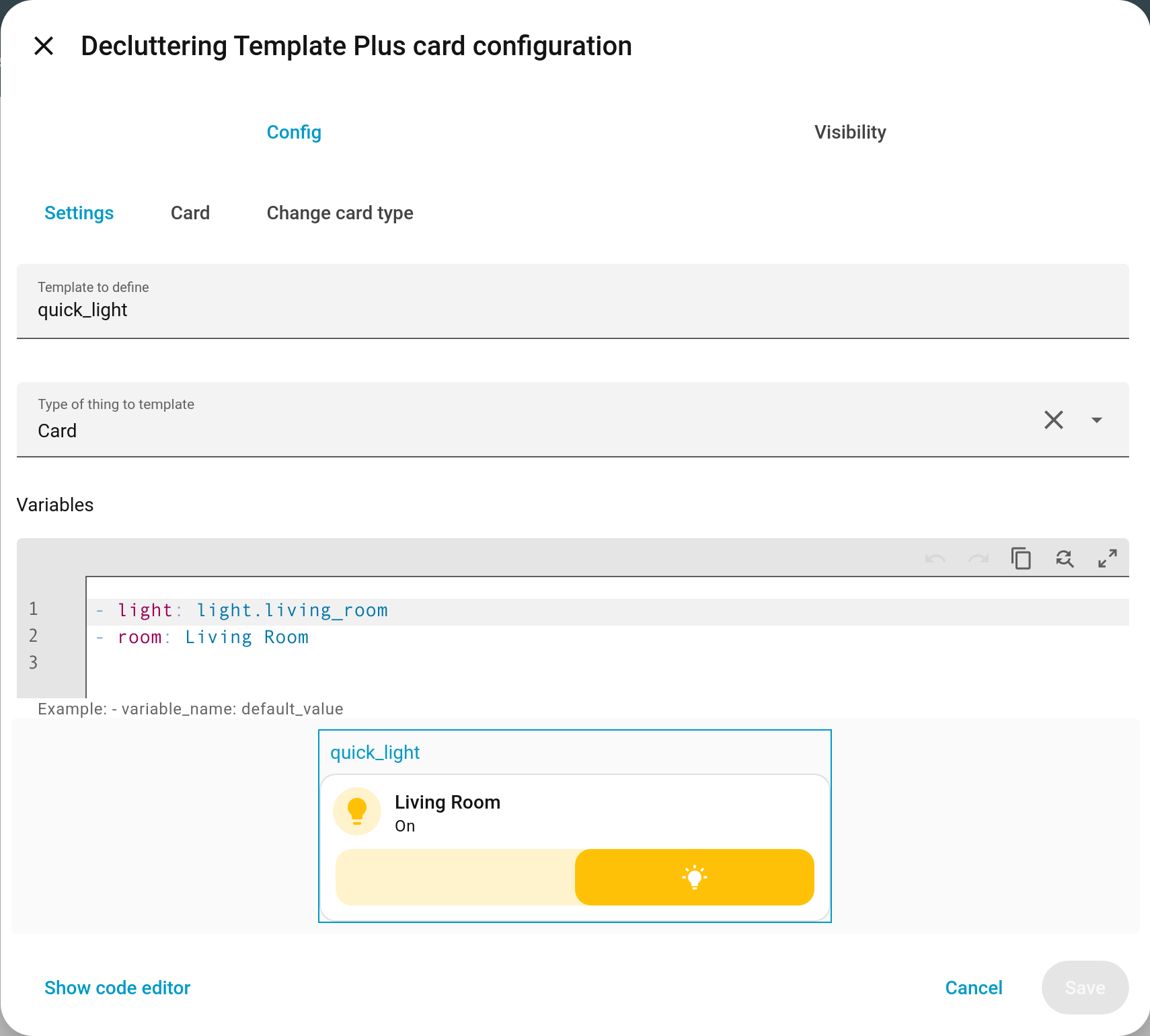
Settings
| Field | Meaning |
|---|---|
| Template to define | The name other cards will use. Must be unique on the dashboard. |
| Type of thing to template | Card, Badge, Row or Element. Switching this swaps the body for a starter of the new type. |
| Description | What the template is for. Shown to whoever uses it, and carried with it when shared. |
| Variable declarations | Descriptions of the variables the template takes, so cards using it get real controls. See Describing Variables. |
| Variables | The template’s default values, as a YAML list — - name: value per line. |
Underneath is a live preview, outlined in blue and labelled with the template name, rendered from the defaults. Give every variable a default and the preview shows you what you are building as you type.
Card
When the type is Card, a second tab gives you Home Assistant’s own card editor for the body:
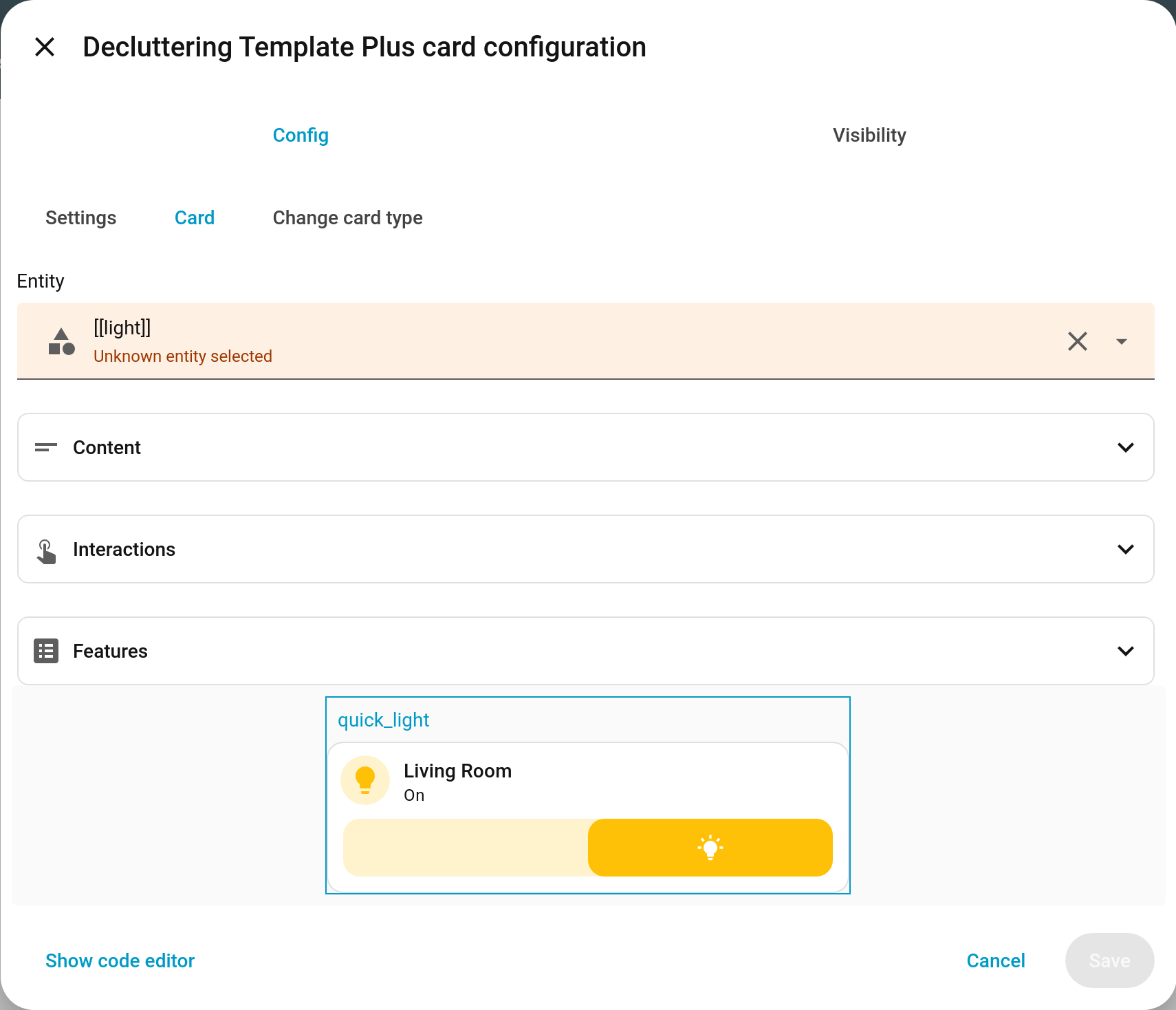
You get the real editor for whichever card type you chose — entity pickers, feature
pickers, interaction settings, the lot. Show code editor at the bottom left drops to
YAML whenever the visual editor cannot express what you want, which is where you put your
[[variables]].
“Unknown entity selected” is normal here. The entity field shows
[[light]], which is a placeholder, not an entity. The editor does not know that. Ignore the warning — the preview below shows the real card built from your defaults.
Change card type
Swaps the template body for a different card type, using the standard card picker.
Row
When the type is Row, you get Home Assistant’s row editor instead.
Badge and Element templates have no dedicated tab — edit them under Settings → Show code editor.
Turning a card you already have into a template
The hard part of the first conversion is deciding which parts of a card change between copies. The editor can work that out for you.
Declutter an existing card (v1.7.0+)
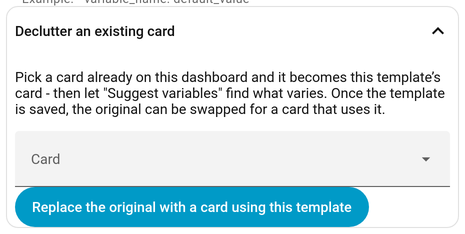
Pick any plain card already on the dashboard from the Card dropdown on the Settings tab and it becomes this template’s card, ready for Suggest variables below. Once the template is saved, Replace the original with a card using this template swaps that card for one using the template — so the dashboard ends up one card shorter in configuration and identical on screen. It asks twice, because it writes the dashboard straight away rather than waiting for Save.
Suggest variables from the card
Put the card into the template — build it on the Card tab, paste it in through Share, or declutter one as above — then press Suggest variables from the card on the Settings tab.
Every entity, name, title, heading and icon in it becomes a variable, described with
the right control and defaulting to the value it replaced, so the template renders exactly
what the card did until you pass something else in.
# before
card:
  type: vertical-stack
  cards:
    - {type: tile, entity: light.hall, name: Hall, icon: mdi:lamp}
    - {type: tile, entity: light.hall, name: Hall again}
# after
variables:
  - {name: entity, label: Entity, selector: {entity: {}}, default: light.hall}
  - {name: name,   label: Name,   selector: {text: {}},   default: Hall}
  - {name: icon,   label: Icon,   selector: {icon: {}},   default: 'mdi:lamp'}
  - {name: name_2, label: Name 2, selector: {text: {}},   default: Hall again}
card:
  type: vertical-stack
  cards:
    - {type: tile, entity: '[[entity]]', name: '[[name]]', icon: '[[icon]]'}
    - {type: tile, entity: '[[entity]]', name: '[[name_2]]'}
- The same value in the same kind of place becomes one variable.
light.hallappears twice above and is one thing to fill in, not two. - Values that are already variables are left alone, as are names the template already declares — so pressing it again after adding another card is safe.
- A list of entities is left alone rather than half replaced.
- Because it rewrites your card, it asks twice before doing anything.
Where used (v1.1.0+)
Lists every view on this dashboard that uses the template and how many times, plus any other template that calls it.
Worth a look before changing a template, because what a change affects is not visible from the template card itself — the cards using it can be anywhere, including inside stacks, grids and conditional cards, all of which are counted. A template card defines rather than uses, so it is not counted. Each view in the list is a link, opened in a new tab so the editor — and anything you have not saved yet — stays exactly where it is.
Other dashboards using the name (v1.6.0+)

Underneath the list, the editor says which other dashboards use a template of the same name, and how many times each: “Other dashboards use this name too: kitchen (3), shed (1).”
It is read-only and deliberately so. Renaming or changing the template here does not touch them, because they are separate dashboards that happen to use the same name — the note is there so a rename is not a surprise to somebody else’s dashboard. A dashboard that cannot be read simply does not appear.
What one card becomes (v1.6.0+)
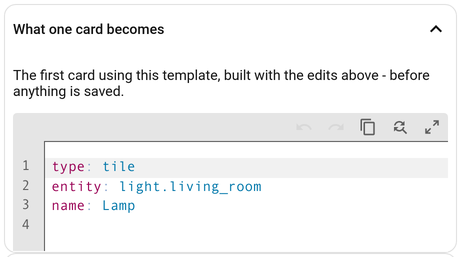
Knowing that a change affects twelve cards is not the same as knowing what it does to them. This panel takes the first real card using the template and builds it against the template as it stands in the editor — unsaved edits and all — so you can see what one of them turns into before saving anything.
It is a preview of the built card’s YAML, not a rendered card, and it disappears if the template is not used anywhere or the edit in hand cannot be built.
Dashboard health (v1.6.0+)
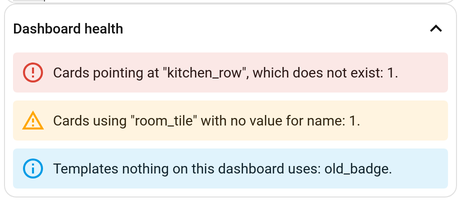
Everything the browser console would have muttered about this dashboard, gathered into one panel:
- Cards pointing at a template that does not exist, with how many.
- Cards leaving a variable unset that the template declares, with the names.
- Templates nothing on this dashboard uses.
When there is nothing to report it says so. The sweep is cheap, so it simply runs rather than asking to be turned on. It looks at this dashboard only, and it never changes anything — an unused template is a fact, not a recommendation to delete it.
Renaming a template (v1.1.0+)
Renaming a template on the Settings tab offers to rename every use of it on the dashboard at the same time, so a rename does not leave a trail of cards pointing at a name that no longer exists.
Share (v1.1.0+)
The Share tab writes the template out as YAML to send to someone else, and takes YAML somebody sent you and puts it into the template card you are editing.
Importing replaces the template card you are editing, and nothing is written to the dashboard until you save as usual.
What an export takes with it (v1.6.0+)
A template is only ever as portable as the things it is built from. The custom cards it
needs are named in a comment, and the other templates it calls ride along with it under
an includes: key, transitively — so a bundle works on arrival instead of carrying a note
about what else to go and find. Anything that genuinely could not be found still gets the
comment.
Import as a copy (v1.6.0+)
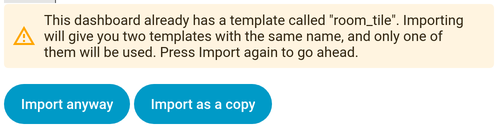
If the incoming template has the same name as one you already have, the editor says so and
waits for a second press — or takes it in under the next free name (room_tile_2) and
leaves the one you already had alone, so the two can be compared rather than chosen between
blind.
Tools on the template editor (v1.2.0+)
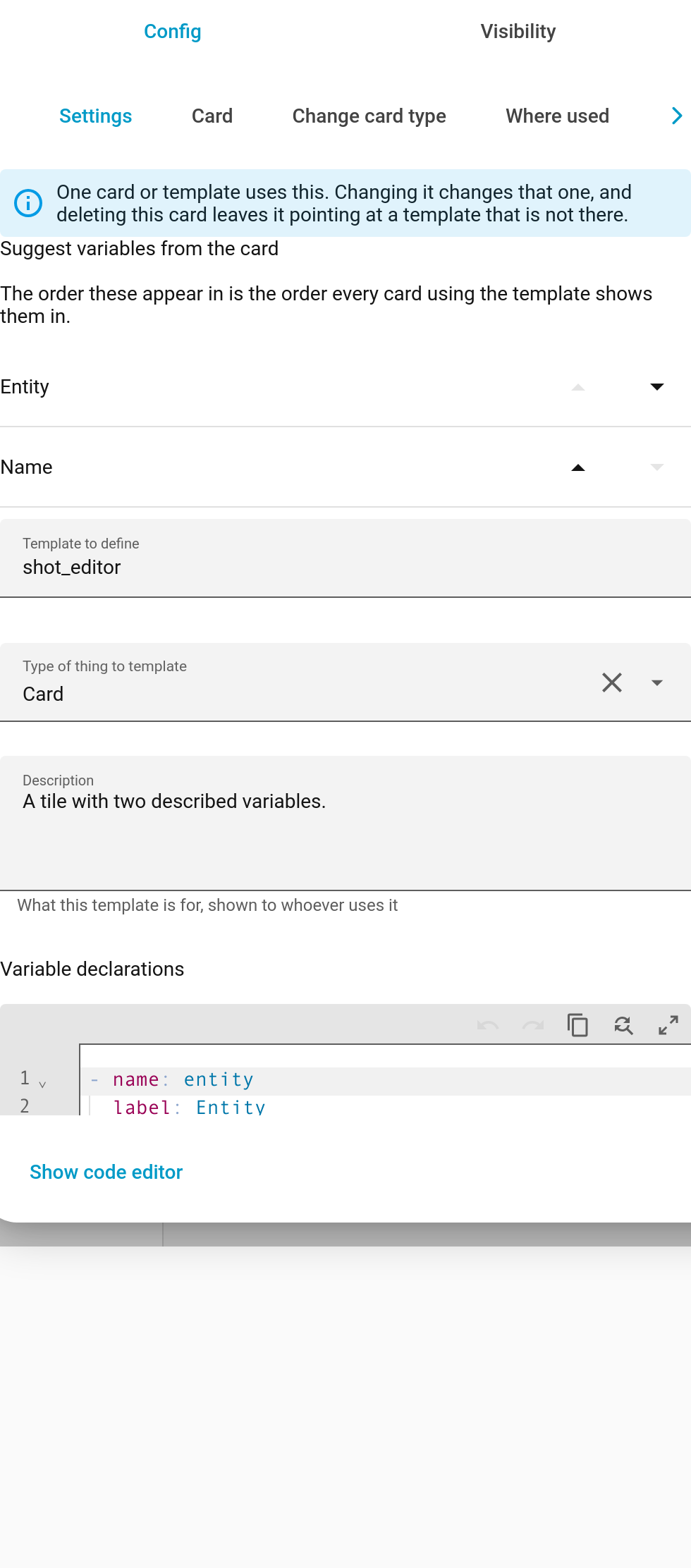
The settings tab: what uses this template, and the order its variables appear in.
A warning when something uses it
The Where used tab has always known, but only if you went and looked — and the moment it matters is when the card is open in front of you, about to be edited or deleted.
Reordering the declared variables
Their order in the list is their order in the form every card using the template gets, and changing it used to mean hand-editing the YAML underneath.
Duplicate
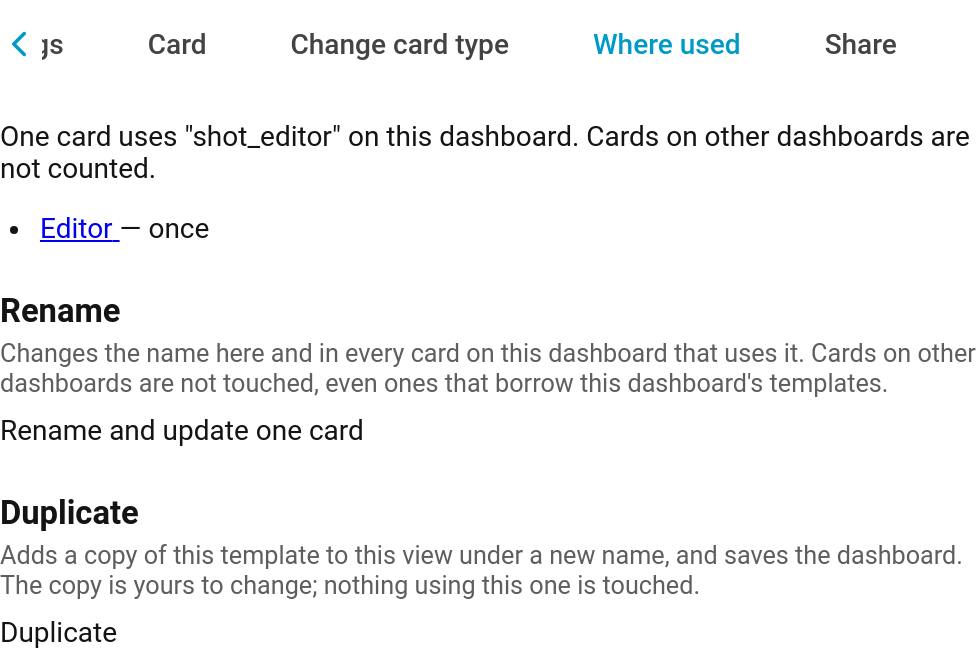
Puts a copy of the template beside it under a new name, which is how most new templates start life. It asks twice, and saves the dashboard when you agree.
Moving off the original card’s names
If any card on the dashboard still says custom:decluttering-card, the Where used tab
offers to rewrite them all. They work as they are — this card answers to both sets of names
— but they would stop working the day the original is installed alongside it, because Home
Assistant loads resources in the order they were added and the original would win.
Starting from something (v1.2.0+)
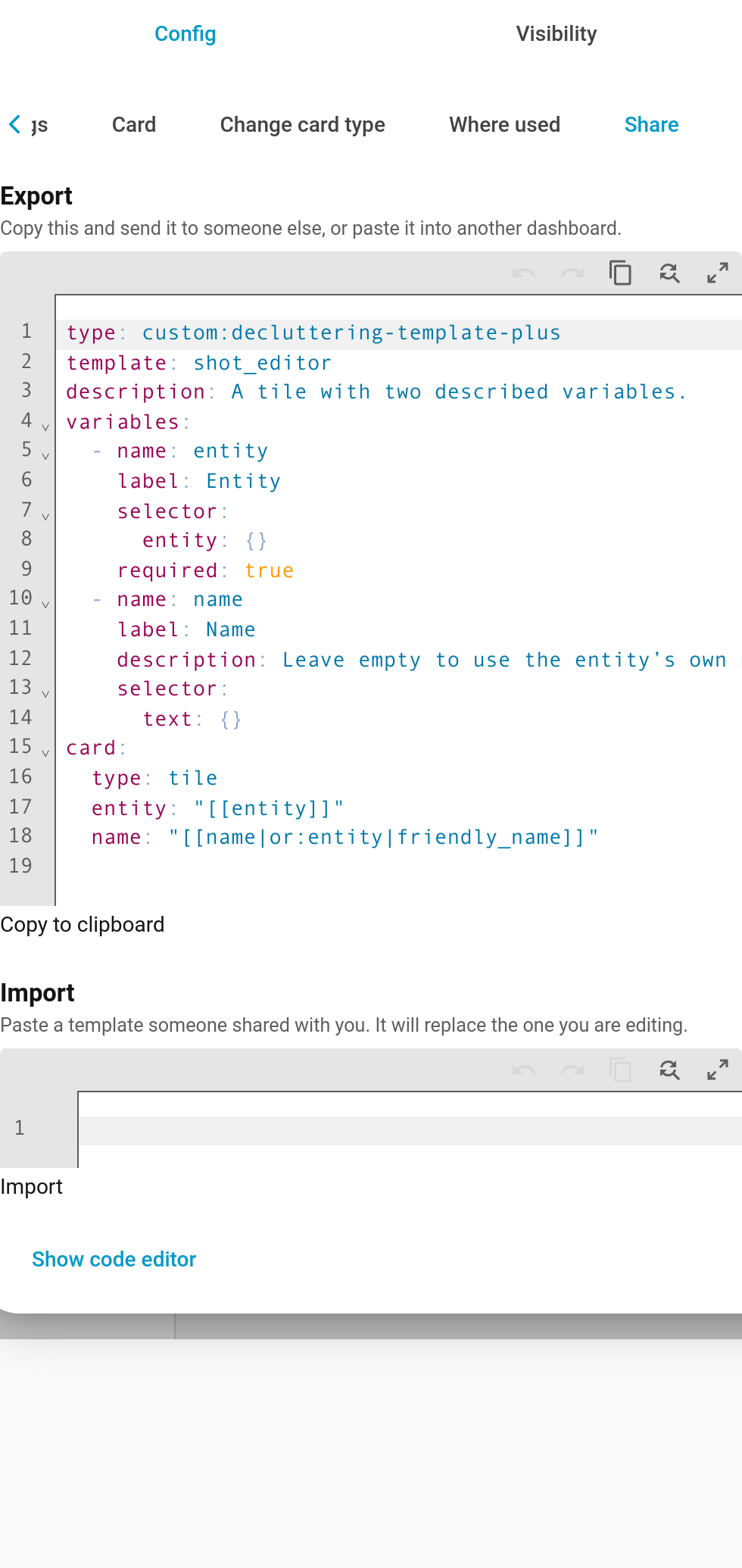
The Share tab has a handful of worked examples of the shapes people build most: a light tile that names itself, a card per room that lists the lights in it, a sensor row, a badge that only appears when something needs attention, and a numbered grid.
They are carried in the card itself rather than fetched, so nothing here reaches the internet.
The Example dropdown (v1.3.0+)
Pick one and it tells you what it is and what else it brings with it before you commit to anything. They used to sit in a list with five buttons down the side of it, which took up most of the tab to say very little.
What it defines (v1.6.0+)
Opens the entry’s actual YAML, so the decision is made on the thing itself rather than on a one-line summary.
Install into (v1.6.0+)
Chooses where the entry lands: this view as its own template card, as before, or straight
into the dashboard’s decluttering_templates: block, where it is available to every view
without a card sitting on one of them. Either way the template you are editing is left
alone, and anything a starter calls comes with it — installing the room card brings the
tile it repeats over.
Install asks twice (v1.3.0+)
The second press is the one that does it, and the button says as much rather than leaving you to guess whether the first press worked.
The card editor
Add a Custom: Decluttering Card Plus card to use a template:
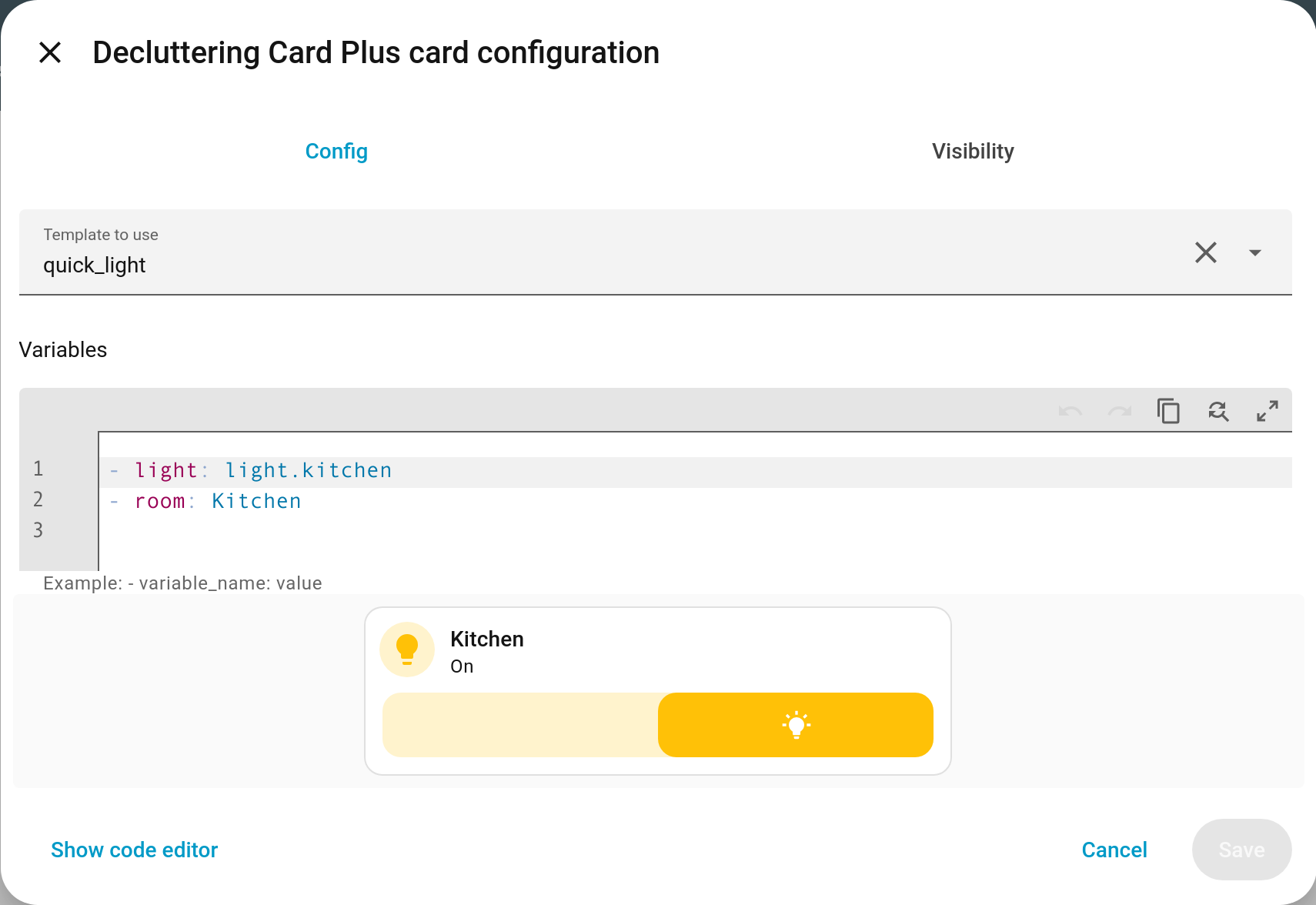
| Field | Meaning |
|---|---|
| Template to use | Dropdown of every template available to this dashboard, sorted. You can also type a name that does not exist yet. |
| Variables | The values to substitute — a YAML list (- name: value per line) or a single mapping. |
| Repeat for each | Render the template once per item. Card templates only. See Repeating a Template. |
| Repeat for each thing Home Assistant knows about (v1.1.0+) | One copy per entity or area, kept up to date. See Repeating a Template. |
| Columns | How many copies sit side by side. |
| Minimum column width (v1.1.0+) | Pixels. Drops a column rather than going narrower. |
| Fit into the layout (v1.1.0+) | Whether this card keeps a box of its own or gets out of the way. See Styling. |
The preview updates as you type.
Result (v1.1.0+)
At the bottom of the card editor, a Result panel shows the card that is actually built once every variable has been put in.
The template is in one place, the values are in another, and what you see on the dashboard
is a third thing — so working out why the result is not what you meant used to mean reading
both and doing the substitution in your head. Anything still written as [[name]] in there
is a variable nothing gave a value to.
It is read-only, and a card repeating over a list shows the first copy.
Replace this card with what it builds (v1.7.0+)
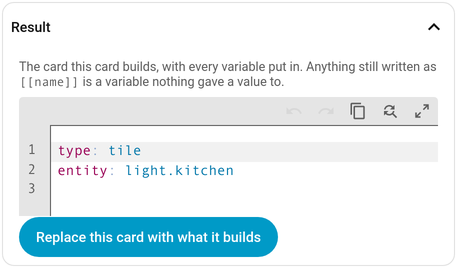
Underneath the built YAML, this swaps the card for exactly the configuration shown and drops the template from its life. Useful when a card has outgrown the template, or when you want to hand somebody a dashboard with no dependency on this card at all.
It asks twice, and it only appears for a single card — a repeat ejecting into a pile of cards is the template earning its keep, so that case is left alone. Nothing is written until you press Save, as with any other change in the editor.
Give each copy its own section (v1.11.0+)
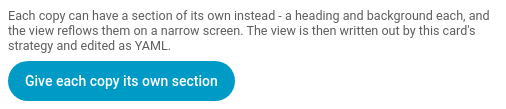
A card repeating inside a section of a sections view offers to turn the repeat into a section per copy, each one able to have its own heading and background and to reflow on a narrow screen. It rewrites the view to use the card’s view strategy: the card’s section is repeated once per copy, anything else in that section stays as a fixed section ahead of it, and every other section and badge goes along unchanged.
It asks twice, saves the dashboard straight away and closes the dialog. Home Assistant’s undo button puts it back. From then on the view is edited as YAML.
It only appears for a saved card written straight into a section, not one inside a stack and not one in a masonry view.
When the template describes its variables
If the template describes its variables, this editor looks quite different: its description appears at the top, and each variable gets a real control — an entity picker, a dropdown, an icon picker — with anything the template does not describe still editable in an Other variables box underneath.
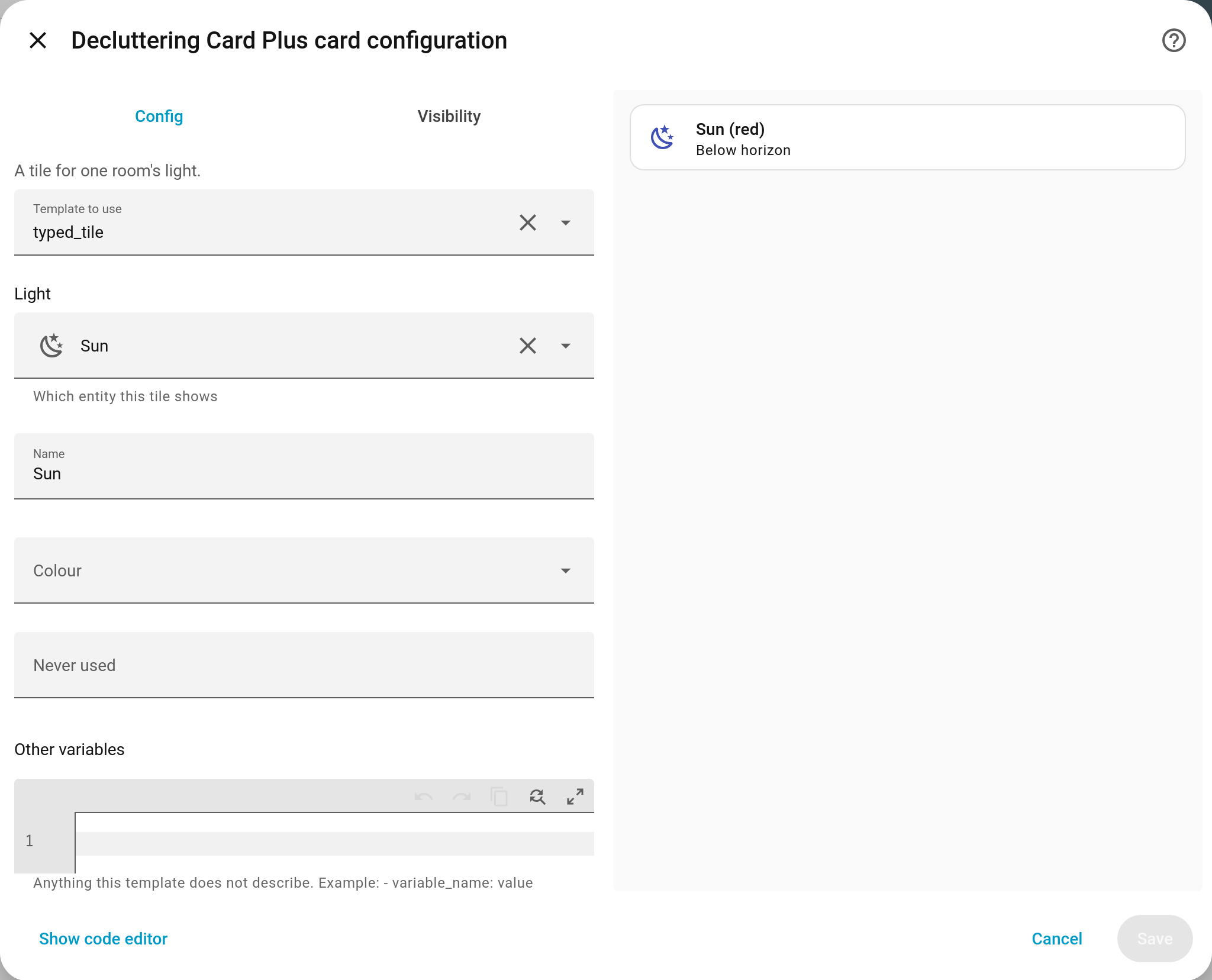
It also warns about a variable the template uses that has no value anywhere, and about a value set here that the template never reads. Neither stops you saving.
The dropdown includes templates defined in decluttering_templates, templates defined as
cards on any view, and templates
borrowed from other dashboards. Borrowed ones
appear a moment later, once the other dashboard has been read — the editor will not flag a
template name as unknown while that is still in flight.
Validation
| Message | Cause |
|---|---|
| No template exists with this name | Typo, or the template is on a dashboard you have not borrowed from |
| Variables must be a list of key and value pairs, or a mapping of them | variables: or default: is something else entirely — a string, or a number |
| The declarations must be a list, each entry naming one variable | A template’s variables: block was written as a mapping. Declarations are a list, because each one names the variable it describes |
| Copies stay in 3 columns however narrow the screen gets… (v1.11.0+) | A repeat with columns above 1 and no min_column_width. Set one and the card drops columns on a phone |
| This card is set to get out of the way… (v1.1.0+) | fit: contents is set alongside a style that paints on the card’s own host, which then has nothing to paint on |

Warnings, as opposed to errors, are listed under Describing Variables. None of them stop a save.
Seeing what a repeat matches (v1.2.0+)
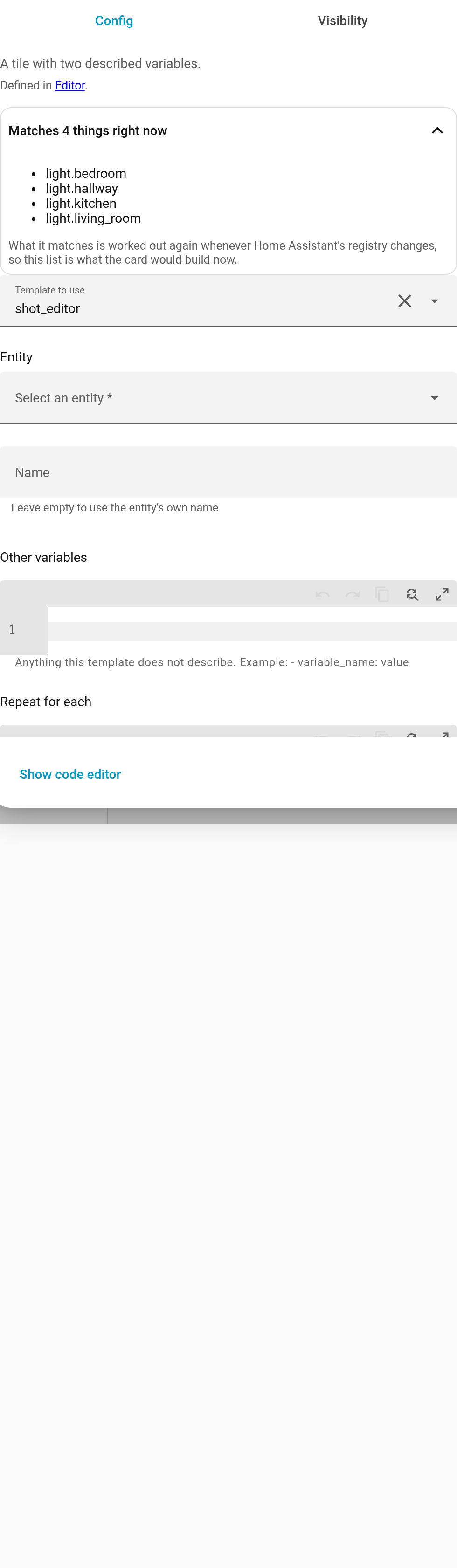
A for_each_from is the most powerful thing the card does and used to be completely
invisible until you saved and looked. A typo in a domain or an area name read as “this card
is broken” rather than “nothing matched that”.
The editor now counts what it matches as you write it, and lists the first dozen. A filter
that matches nothing says so plainly — and mentions the empty: card if one is set, since
that is what would actually be drawn.
The list is what the card would build now; it is worked out again whenever Home Assistant’s registry changes.
The template dropdown also shows each template’s description beside its name, which matters once a dashboard has twenty of them.
Editing rows and elements
Rows and picture elements have no card picker entry, so add them in YAML:
- Add (or open) an Entities or Picture Elements card.
- Click Show code editor.
- Add the entry to
entities:orelements:as shown in Rows / Elements.
The template itself can still be built with the visual template editor.
When you would rather use YAML
Everything the editors do is plain configuration. ⋮ → Raw configuration editor on the dashboard gives you the whole thing at once, which is usually faster for defining several templates — see Defining Templates.
→ Defining Templates · Using Templates
The template editor’s Share tab exports a template for someone else, and imports one they sent you — see Sharing a Template.