Describing Variables
A template can say what each of its variables is, not just what it defaults to. Do that, and every card using the template gets a real control for it — an entity picker, a dropdown, an icon picker — instead of a box of hand-typed YAML.
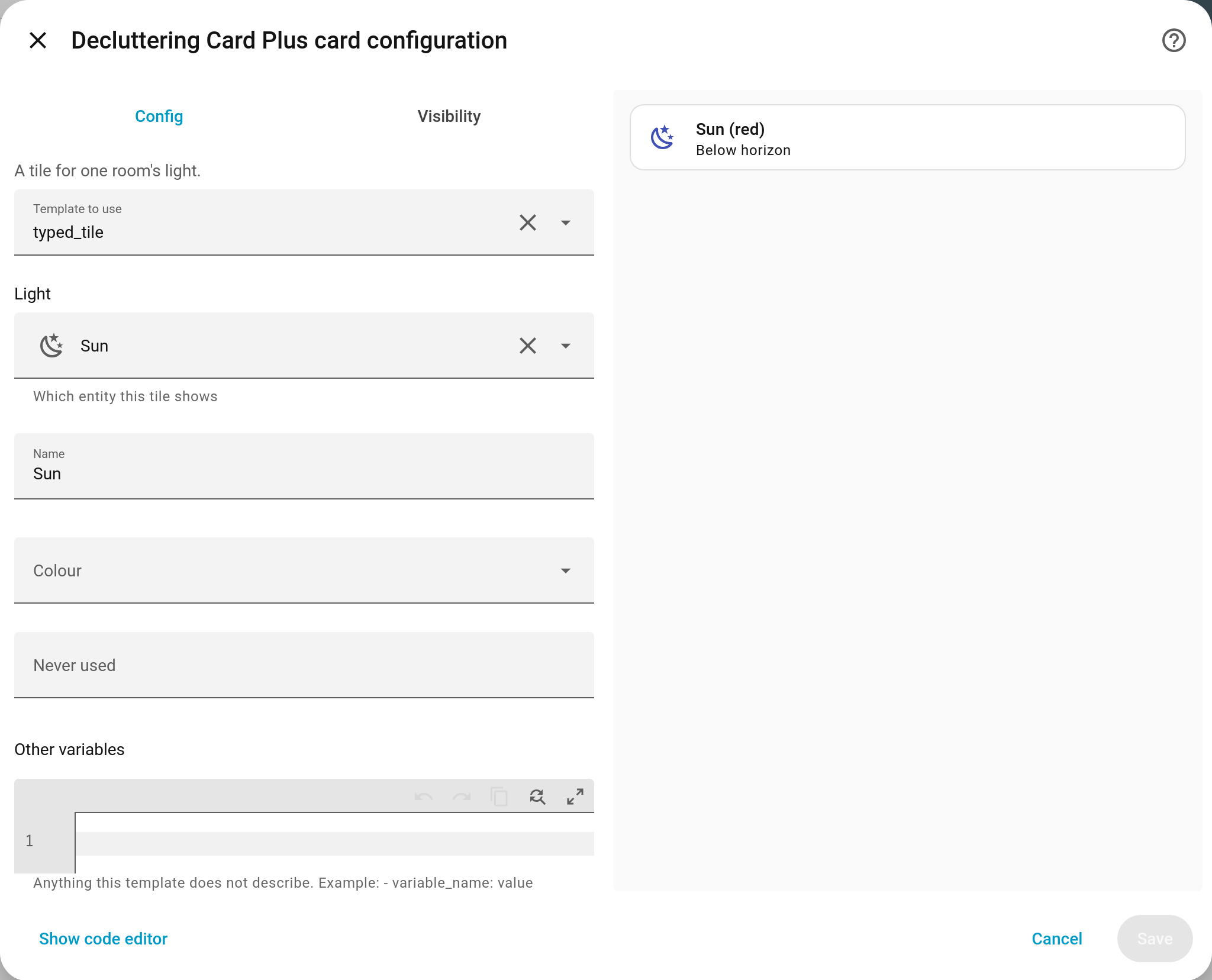
Describing variables is entirely optional. A template that describes nothing works exactly as it always has.
Declaring them
variables: on the template is a list, one entry per variable:
type: custom:decluttering-template-plus
template: room_tile
description: A tile for one room's light.
variables:
  - name: entity
    label: Light
    description: Which entity this tile shows
    selector:
      entity:
        domain: light
  - name: colour
    label: Colour
    selector:
      select:
        options: [red, blue, amber]
    default: red
card:
  type: tile
  entity: '[[entity]]'
  name: '[[label]] ([[colour]])'
| Key | Type | Required | Description |
|---|---|---|---|
name |
string | ✅ | The variable’s name, as written in [[name]] |
label |
string | — | What the editor calls it. Defaults to the name |
description |
string | — | Helper text under the control |
selector |
mapping | — | Any Home Assistant selector. Defaults to a plain text box |
default |
any | — | The value to use when a card does not set one |
required (v1.1.0+) |
boolean | — | Whether the template is unusable without it. See Insisting on a value |
description: on the template itself is shown above the controls, so whoever uses it
can see what it is for. It travels with the template when you
share it.
An entry with no name, or a name that repeats an earlier one, is ignored rather than
breaking the card.
Insisting on a value (v1.1.0+)
required: true says the template cannot do its job without that variable:
variables:
  - name: entity
    label: Light
    required: true
    selector:
      entity:
        domain: light
It does two things.
In the card editor, the field is marked required, and a card that leaves it unset is told so as an error rather than a warning — This template needs a variable you have not set: entity. Like every other message here, it still does not stop you saving.
In a repeat, an item that leaves it empty is skipped rather than rendered broken. That
is what lets one for_each cover a room with three lights and a room with one, without a
dummy entity id standing in for the lights that are not there — see
Repeating a Template.
Empty means unset, null or ''; a 0 and a false are values.
required: true alongside a default contradicts itself, since a variable with a default
can never be unset, and the template editor says so.
If what you want is the opposite — a variable the card can simply do without — that is the
? marker on the placeholder rather than anything in the declaration. See
Variables.
Checking the value: pattern: and allowed: (v1.8.0+)
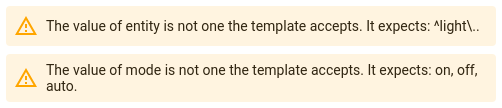
A declaration can say what an acceptable value looks like, and the card editor warns when a card’s value does not fit:
variables:
  - name: entity
    selector: { entity: {} }
    pattern: '^light\.'          # a regular expression
  - name: mode
    allowed: [on, off, auto]     # one of these exactly
The value of entity is not one the template accepts. It expects: ^light..
A few things worth knowing:
- It warns; it never blocks. The card saves and renders as it would have, the same as every other warning.
- An unset value is not a wrong one. Leaving a variable empty is what
requiredis for. - The pattern is not anchored for you.
lightmatchessensor.light_leveltoo; write^light\.to mean “starts with light.”. allowed:wins if a declaration has both, and a pattern that is not a valid regular expression is ignored rather than breaking the card.
allowed: as a dropdown (v1.11.0+)
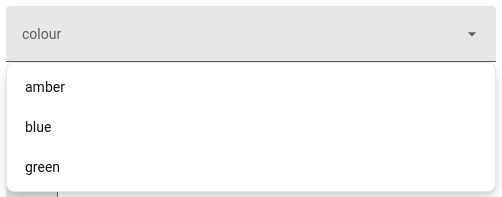
A declaration with allowed: and no selector: gets a dropdown of exactly those values in
the card editor, instead of a text box that warns after the fact. A selector: of your own
still wins. Values are compared as text, so allowed: [1, 2] accepts the 2 a dropdown
hands back.
Selectors worth knowing
Any Home Assistant selector works. These are the ones that come up most:
selector: {entity: {}}                                  # any entity
selector: {entity: {domain: light}}                     # lights only
selector: {text: {}}                                    # a line of text
selector: {text: {multiline: true}}                     # a block of text
selector: {number: {min: 1, max: 12, mode: box}}        # a number
selector: {boolean: {}}                                 # a switch
selector: {icon: {}}                                    # an icon picker
selector: {select: {options: [red, blue]}}              # a fixed set
selector: {area: {}}                                    # an area
selector: {ui_color: {}}                                # a Home Assistant colour
A selector that produces a number gives you a real number, so it works as a whole value — see value types.
Which value wins
Six places can supply a value. They are tried in this order:
| Order | Where | Beats |
|---|---|---|
| 1 | variables: on the card using the template |
everything |
| 2 | the section’s decluttering_defaults (v1.10.0+) |
the four below |
| 3 | the view’s decluttering_defaults (v1.9.0+) |
the three below |
| 4 | default: inside a declaration |
the default: list |
| 5 | default: on the template |
the dashboard’s |
| 6 | the dashboard’s decluttering_defaults |
— |
The section, view and dashboard values are covered in Sharing Templates Between Dashboards.
default: is untouched by any of this and still works on its own. You can use both — but
if the same name has a default in both places, the declaration is the one that counts, and
the template editor says so.
What you get in the editor
For a template that declares its variables, the card editor shows:
- the template’s
description, above everything - one control per declaration, with its label and helper text
- an Other variables box underneath, holding anything the template does not describe
Nothing is lost either way. Values the template never declared stay editable in that box, and a template that declares nothing shows the plain YAML box exactly as before.
Leaving a control empty sets nothing, so the template’s own default applies. That is why a variable with a default shows an empty control rather than the default value — writing it into every card is the duplication templates exist to remove. To set a variable to an actual empty string, use the Other variables box.
Folding a long list: group: (v1.8.0+)
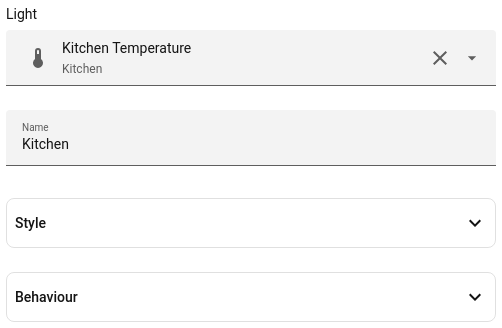
A template with a dozen variables makes for a long form. Give declarations a group: and the
card editor folds each group into its own section:
variables:
  - name: entity
  - name: accent
    group: Style
  - name: name
  - name: radius
    group: Style
  - name: level
    group: Behaviour
Ungrouped declarations come first, then each group in the order its first declaration
appears — here entity and name at the top, then Style, then Behaviour.
A variable that takes a whole card: selector: {card: {}} (v1.8.0+)
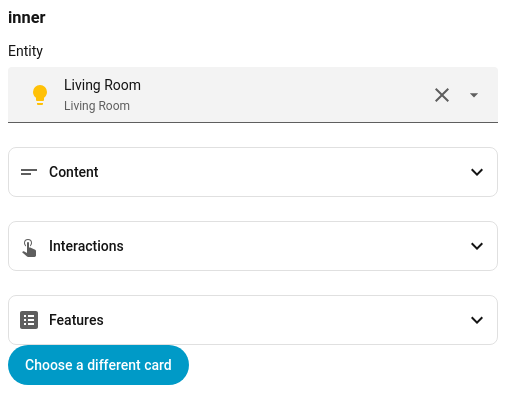
A declaration can take an entire card as its value — a template that frames whatever card you hand it, say:
variables:
  - name: inner
    selector: { card: {} }
card:
  type: vertical-stack
  cards:
    - type: markdown
      content: '## [[title]]'
    - '[[inner]]'
In the card editor that variable gets Home Assistant’s own card picker and card editor, the same as adding a card to a view, and Choose a different card starts again.
Warnings
Once a template describes itself, both editors can point out the mistakes that are easy to make and impossible to see:
| Where | Message | Means |
|---|---|---|
| Card editor | This template needs variables you have not set: … (v1.1.0+) | A required: true variable with no value. Shown as an error, not a warning |
| Card editor | This template uses variables with no value and no default: … | The card will render the literal text [[name]] |
| Card editor | This variable is set here but never used by the template: … | Usually a typo in the name, or a leftover from an older version of the template |
| Template editor | This variable is declared but never used in the template: … | A declaration with no matching [[name]] |
| Template editor | These variables have a default in both places… | The same name defaulted in variables: and in default: |
| Template editor | These variables are marked required but have a default… (v1.1.0+) | required: true and a default on the same variable, which contradict each other |
None of them stop you saving. A template can be edited after the cards that use it, so a card that looks wrong now may be right again in a moment.
A variable used only through a transform
counts as used: [[room|slug]] is a use of room.
A placeholder that only appears inside the value of a variable nothing refers to is never substituted, so it is not reported as missing either.
Letting the editor write them for you
If you already have the card, you do not have to declare anything by hand — the template editor can work it out. See Turning a card into a template.
Next
→ Variables for placeholders, defaults and value types → Visual Editors for the editors themselves → Repeating a Template for rendering one template many times