Visibility Configuration Guide
Dynamic visibility lets a chore show or hide itself based on the state of any Home Assistant entity. This guide walks through configuring it end to end.
Quick Start
Step-by-Step Setup
- Open the TaskMate panel
-
Click TaskMate in the Home Assistant sidebar
-
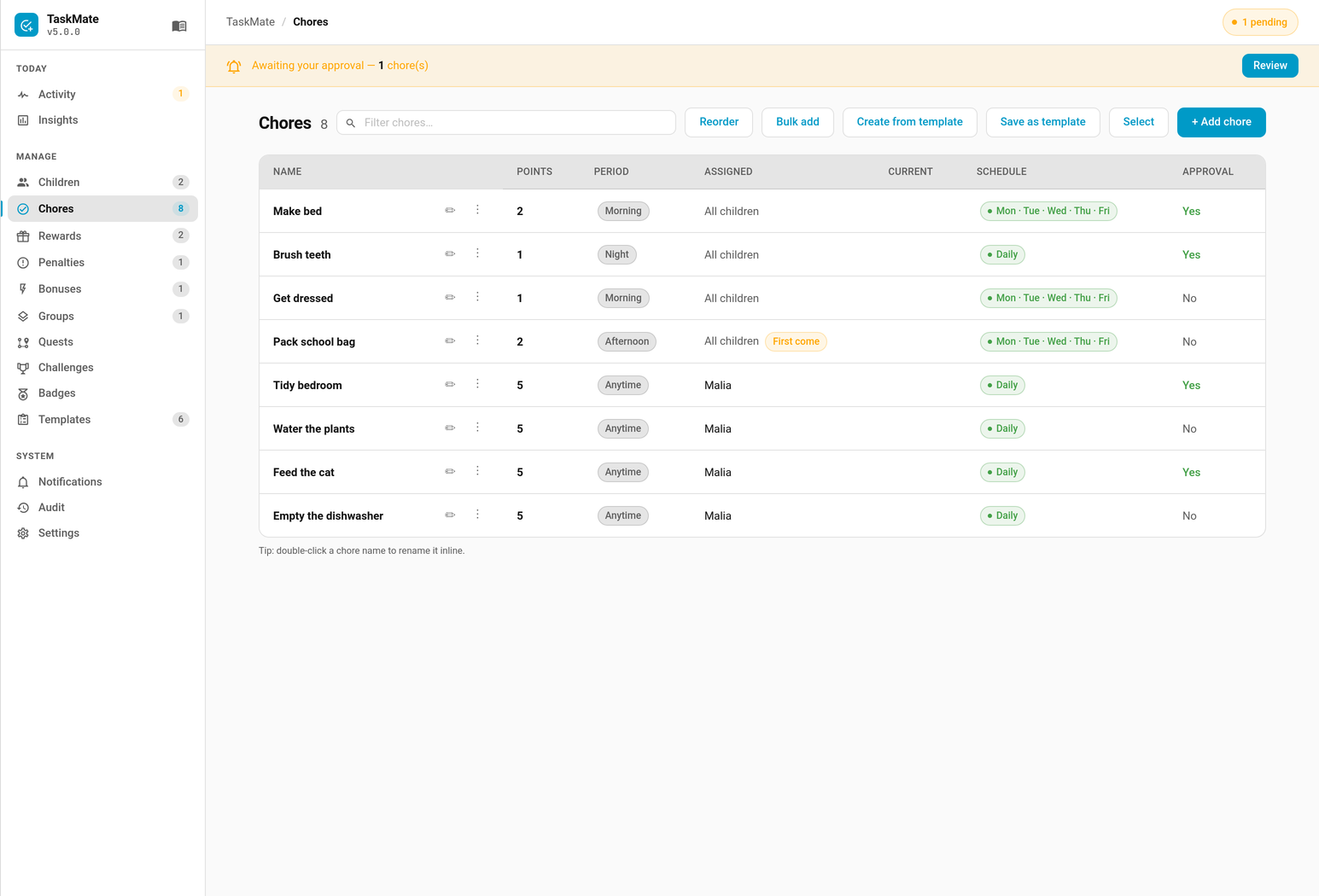
Go to Chores
-
Either + Add chore to create one, or click the ✏ button on an existing chore's row to edit it
-
Open the visibility settings
- In the chore dialog, expand Advanced — visibility & calendar publishing
-
Set the three visibility fields (see below)
-
Save
-
Save the chore; the change takes effect on the next refresh
-
Test
- Open a child card
- Verify the chore appears and disappears as the entity changes
Older versions of TaskMate configured chores through Settings → Devices & Services → TaskMate → Configure. That wizard is gone — everything is managed from the TaskMate panel now.
Visibility Fields Explained
Field 1: Show When Entity Is (optional)
What it does: Specifies which Home Assistant entity controls the chore's visibility.
Examples of valid entity IDs:
- binary_sensor.dishwasher
- sensor.soil_moisture
- input_boolean.guest_mode
- switch.laundry_room
- sensor.outdoor_temperature
- number.threshold_value
How to find your entity ID: 1. Go to Developer Tools > States 2. Search for the entity you want 3. Copy the entity ID from the left column 4. Paste into the visibility field
Leaving it blank: If you leave this field empty, visibility filtering is disabled and the chore always shows. Setting the operator to None has the same effect, and is what a chore starts with.
Field 2: How to Compare
What it does: Specifies the comparison operator to use.
Available operators:
| Operator | Best For | Example |
|---|---|---|
None |
The default. No visibility check — the chore always shows | — |
Equals |
String matching | binary_sensor.door = open |
Not Equal |
Inverse conditions | input_boolean.guest_mode ≠ on |
≥ (Greater or equal) |
Minimum numeric threshold | sensor.battery ≥ 80 |
≤ (Less or equal) |
Maximum numeric threshold | sensor.moisture ≤ 30 |
> (Greater than) |
Above numeric threshold | sensor.temp > 20 |
< (Less than) |
Below numeric threshold | sensor.temp < 0 |
How to choose:
- Text values (on, off, home, running): Use Equals or Not Equal
- Numbers (percentages, temperature, counts): Use ≥, ≤, >, or <
- Inverted logic (show when NOT condition): Use Not Equal
Field 3: Value to Compare
What it does: Specifies the target value for the comparison.
For text operators (Equals, Not Equal):
- Enter any string value
- Examples: on, off, home, away, running, idle
- Must match the entity state exactly (case-insensitive)
For numeric operators (≥, ≤, >, <):
- Enter a number only
- Decimal values allowed: 22.5, 10.25
- No units: use 30 not 30% or 30°C
Finding the correct value: 1. Go to Developer Tools > States 2. Find your entity 3. Look at the "state" column 4. Copy the exact value
Examples:
Entity: binary_sensor.dishwasher
State in Developer Tools: "on"
Value to Compare: on

Entity: sensor.temperature
State in Developer Tools: 22.5
Value to Compare: 22.5

Entity: sensor.battery_percent
State in Developer Tools: 85
Value to Compare: 80 (if you want >= 80%)
Configuration Workflow
Scenario 1: Equipment-Based Chores (Binary Sensor)
Goal: Show "Fold Laundry" only when the dryer is running.
Setup:
- Create/Edit Chore
- Name: "Fold Laundry"
- Points: 10
- Time Category: Anytime
-
Expand Advanced — visibility & calendar publishing
-
Set Visibility
- Show When Entity Is:
binary_sensor.dryer - How to Compare:
Equals -
Value to Compare:
on -
Result
- ✅ Shows when dryer IS running (
on) - ❌ Hides when dryer is off (
off)
Why this works: Children can't fold laundry if it's not done drying yet.
Scenario 2: Sensor-Based Chores (Numeric Threshold)
Goal: Show "Water Plants" when soil moisture drops below 40%.
Setup:
- Create/Edit Chore
- Name: "Water Plants"
- Points: 5
- Time Category: Morning
-
Expand Advanced — visibility & calendar publishing
-
Set Visibility
- Show When Entity Is:
sensor.soil_moisture - How to Compare:
≤(Less than or equal) -
Value to Compare:
40 -
Result
- ✅ Shows when moisture is 40% or lower
- ❌ Hides when moisture is above 40%
Why this works: No need to water if the plant is already moist enough.
Scenario 3: Conditional Chores (Input Boolean)
Goal: Show "Lunch Prep" only on school days using an input_boolean.
Setup:
- Create the Helper (in Settings → Devices & Services → Helpers)
- Name: "School Day"
- Entity ID:
input_boolean.school_day -
Create automation or manually toggle it
-
Create/Edit Chore
- Name: "Lunch Prep"
- Points: 3
- Time Category: Morning
-
Expand Advanced — visibility & calendar publishing
-
Set Visibility
- Show When Entity Is:
input_boolean.school_day - How to Compare:
Equals -
Value to Compare:
on -
Result
- ✅ Shows when
input_boolean.school_dayison - ❌ Hides when it's
off
Why this works: Parents can toggle the helper to control when lunch prep shows.
Scenario 4: Inverse Logic (Not Condition)
Goal: Show "Tidy Room" only when guests are NOT coming.
Setup:
- Create/Edit Chore
- Name: "Tidy Room"
- Points: 8
- Time Category: Anytime
-
Expand Advanced — visibility & calendar publishing
-
Set Visibility
- Show When Entity Is:
input_boolean.guest_mode - How to Compare:
Not Equal -
Value to Compare:
on -
Result
- ✅ Shows when guest_mode is OFF (not "on")
- ❌ Hides when guest_mode is ON ("on")
Why this works: Kids can relax when guests aren't coming; when they are, they should clean instead.
Scenario 5: Temperature-Based Chores
Goal: Show "Yard Work" only when it's warm (≥ 20°C).
Setup:
- Create/Edit Chore
- Name: "Yard Work"
- Points: 15
- Time Category: Afternoon
-
Expand Advanced — visibility & calendar publishing
-
Set Visibility
- Show When Entity Is:
sensor.outdoor_temperature - How to Compare:
≥(Greater or equal) -
Value to Compare:
20 -
Result
- ✅ Shows when temperature is 20°C or warmer
- ❌ Hides when it's colder than 20°C
Why this works: Outdoor work is only reasonable in decent weather.
Verifying Your Configuration
Check Entity Availability
- Go to Developer Tools > States
- Search for your visibility entity
- Confirm it exists and has a current state
- If it shows "unavailable" or "unknown", fix the integration first
Test the Condition
Manually toggle or change the entity state in Developer Tools and watch the child card:
- Developer Tools > States
- Find your visibility entity
- Click the entity row to expand it
- Click the "SET STATE" button (if available)
- Change to a state that should match your condition
- Watch the child card (updates within 30 seconds)
- Change back to a state that shouldn't match
- Verify the chore hides
Review Developer Tools > States
After setting up visibility, your entity should appear with the correct state:
binary_sensor.dishwasher: on
sensor.soil_moisture: 35
input_boolean.guest_mode: off
sensor.temperature: 22.5
Numeric Comparison Tips
Converting Units to Numbers
Battery percentage example:
- Entity: sensor.battery_percent
- State: 85
- To show when ≥ 80%: Enter 80
Temperature example:
- Entity: sensor.temperature (in Celsius)
- State: 22.5
- To show when ≥ 20°C: Enter 20
Humidity example:
- Entity: sensor.humidity
- State: 60
- To show when ≤ 70%: Enter 70
Decimal Values
Decimal values are fully supported:
Entity: sensor.temperature
Operator: >
Value: 20.5
→ Shows when temperature is above 20.5°C
Negative Numbers
Negative comparisons work fine:
Entity: sensor.temperature
Operator: <
Value: 0
→ Shows when temperature is below freezing (< 0°C)
Common Configuration Mistakes
❌ Mistake 1: Wrong Entity ID
Problem: Typo in entity ID
Configured: binary_sensro.dishwasher  (typo)
Should be: binary_sensor.dishwasher
Fix: 1. Go to Developer Tools > States 2. Copy the exact entity ID 3. Paste it correctly
❌ Mistake 2: Using Units in Numeric Field
Problem: Entering units with the number
Configured: 30%  (wrong)
Should be: 30
Fix: Enter only the number, no %, °C, or other units.
❌ Mistake 3: Case-Sensitive Matching
Problem: Assuming case matters
Entity state: "Home"
Configured value: "home"  (different case)
Fix: Matching is case-insensitive, so both work fine.
❌ Mistake 4: Guessing the State Value
Problem: Assuming a state that the entity never reports
Guessed: "running"
Actual state: "active"
Fix: Check Developer Tools → States for the value the entity actually
reports. Case does not matter — Running and running both match — but the
word itself has to be right.
❌ Mistake 5: Using Comparison Operator for Text
Problem: Using > for text matching
Operator: > (Greater than)
State: "running"
Fix: Use Equals for text values.
Advanced Configurations
Multiple Chores with Same Condition
Create several chores that share the same visibility condition:
Chores related to dishwasher (all visible when binary_sensor.dishwasher = on):
1. Load Dishwasher
2. Unload Dishwasher
3. Wipe Counters
Each chore can have the same visibility settings.
Chained Dependencies
Use multiple input_booleans to create complex logic:
# In Home Assistant automation
- alias: Update chore conditions
  triggers:
    - platform: state
      entity_id: input_boolean.guests_arriving
  actions:
    - service: input_boolean.turn_on
      target:
        entity_id: input_boolean.room_cleaning_chores
Then set chore visibility to the dependent helper.
Scheduled Conditions
Create time-based conditions using template sensors:
template:
  - sensor:
      - name: "Is School Day"
        unique_id: is_school_day
        state: >
          {% if now().weekday() < 5 %}
            on
          {% else %}
            off
          {% endif %}
Use sensor.is_school_day for visibility.
Troubleshooting Guide
Chore never appears
Checklist: 1. ✓ Entity ID is correct (check Developer Tools > States) 2. ✓ Entity state is available (not "unavailable") 3. ✓ Comparison operator matches your intent 4. ✓ Value matches the entity state exactly 5. ✓ Waited 30 seconds for update cycle 6. ✓ Reloaded the child card (refresh browser)
How to debug:
Go to Developer Tools > States
Find your visibility entity
Check the current state value
Manually verify it should match your condition
If not, the condition is set incorrectly
Chore always shows
Checklist: 1. ✓ Visibility Entity field is NOT empty 2. ✓ Visibility State value is correct 3. ✓ Entity actually exists in Home Assistant 4. ✓ Entity is not in "unavailable" state
Note: If the entity does not exist at all (deleted, renamed, or a typo in the entity id) the chore defaults to visible, so a broken reference can never silently hide a family's chores.
An entity that exists but reports unavailable or unknown is different: that
is just a state string, and it is compared like any other. It will not match
on, so the chore hides. If an integration dropping offline should not hide
a chore, point the condition at something more stable — or use Not Equal so an
unexpected state leaves the chore showing.
Numeric comparison not working
Checklist:
1. ✓ Entity state is numeric (no text/units)
2. ✓ Using correct comparison operator (≥, ≤, >, <)
3. ✓ Value is a valid number (not 30% or 30°C)
4. ✓ Check exact value in Developer Tools > States
Two Behaviours Worth Knowing
The value field can carry its own operator
If the Value to Compare field starts with >=, <=, >, < or !=, that
prefix is used as the operator and overrides the dropdown. Setting the
operator to Equals and typing >=50 into the value gives you ≥ 50, not a
string match on the literal text >=50.
| Value typed | Behaves as |
|---|---|
>=10 |
Operator ≥, threshold 10 |
<20 |
Operator <, threshold 20 |
!=off |
Operator Not Equal, value off |
This is handy for quick edits, and a trap if you did not expect it.
Attributes are matched too, not just the state
If the entity's state does not match, TaskMate then checks every attribute
value on that entity for a match. So a condition of home will also match an
entity whose state is something else but which carries an attribute equal to
home.
That makes some conditions work that otherwise look like they shouldn't — and it can also cause a surprise match. If you need a strict test, pick an entity whose state alone carries the meaning.
Getting Help
- Dynamic Chore Visibility — Feature overview
- Visibility Operators Reference — Detailed operator guide
- Home Assistant Developer Tools — Finding entities
- TaskMate GitHub Issues — Report bugs
See Also
- Getting Started — full TaskMate setup
- Dynamic Chore Visibility — Feature overview
- Visibility Operators Reference — Operator details