Chores
Managing Chores
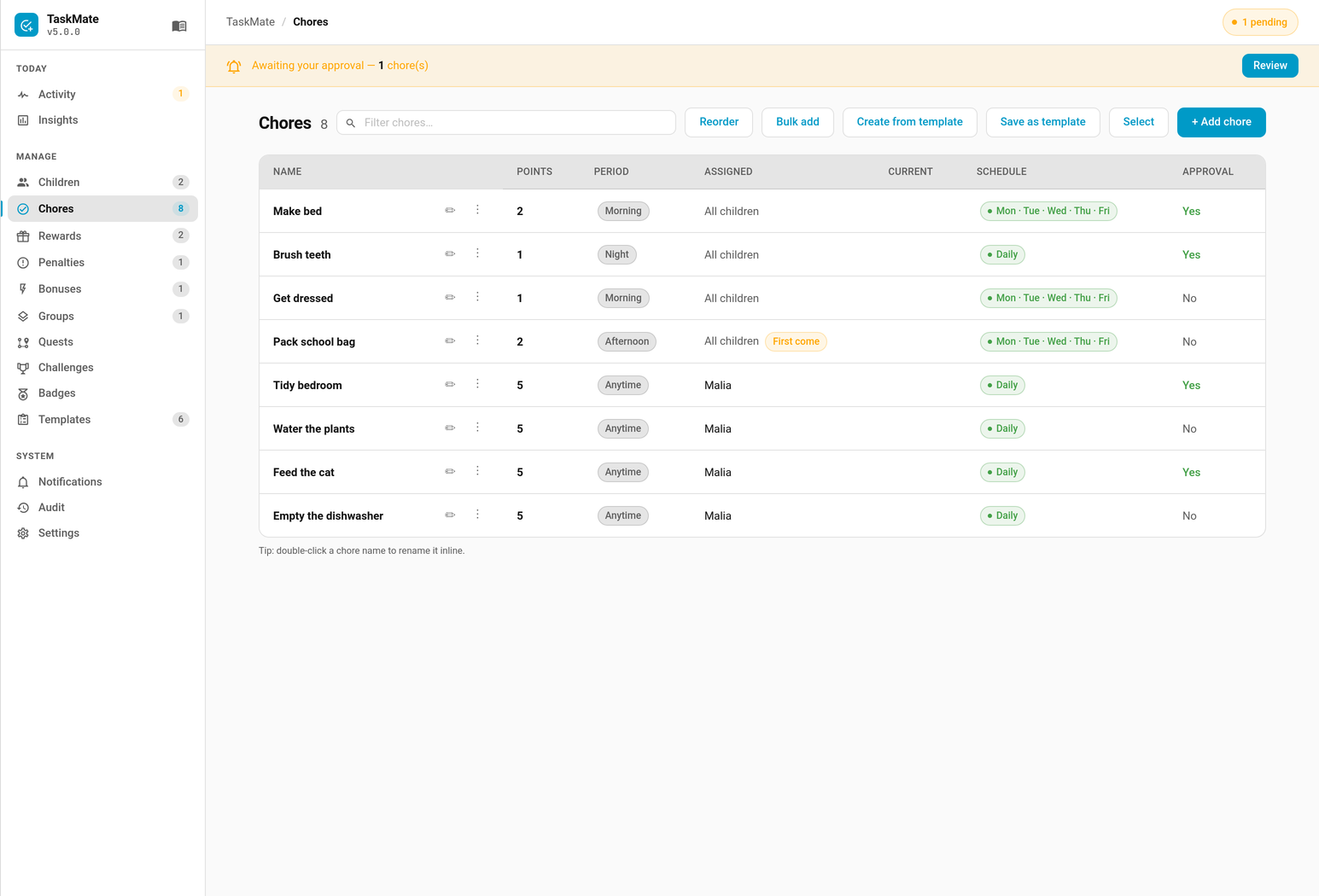
Managed from the TaskMate panel in the Home Assistant sidebar, under Chores.
You can add chores one at a time or in bulk (multiple chores with the same settings in one step).
Chore Fields
| Field | Default | Description |
|---|---|---|
| Name | — | Display name shown on the child card |
| Description | "" |
Optional subtitle shown below the name when enabled on the card |
| Picture | none | Optional icon (icon) or uploaded photograph (v5.1.0+) for the chore. Classic cards show it in place of the number inside the coloured badge; Playroom, Console, Clean Pro and Accessible show it in place of the guessed emoji. Required for Pre-Reader Mode. Chores without one are unchanged. (Saved and rendered correctly since v5.0.4.) |
| Points | 10 |
Stars earned when the chore is completed and approved. A parent can override this per approval — see Open-Ended Chores. |
| Difficulty | medium |
easy / medium / hard — scales the awarded points by the tier multiplier. See Difficulty Tiers. |
| Time of Day | anytime |
Groups the chore into a time slot — controls which child card instance shows it |
| Scheduling Mode | specific_days |
specific_days — appear on selected days. recurring — rolling recurrence window (every 2 days to every 6 months, or a custom every N days from v6.2.0). one_shot — single-use task, valid for one day only. See Chore Scheduling. |
| Due Days | none | Days of the week this chore is scheduled — see below |
| Assigned To | all children | Which children this chore belongs to — leave empty for all |
| Depends On | none | Prerequisite chores (depends_on); this chore stays locked until they're all approved for the child today. See Chore Dependencies. |
| Requires Approval | true |
If on, completion is pending until a parent approves it |
| Require Photo Proof | false |
If on, completions always require parent approval; an attached evidence photo shows in approvals. See Photo Proof. |
| Mandatory chore | false |
If on (mandatory), the chore is flagged as required and a parent can apply a penalty when it's missed. See Mandatory Chores. |
| Penalty points if missed | 0 |
Points (mandatory_penalty_points) deducted when a parent applies the penalty for a missed mandatory chore |
| Expiry Date | none | Optional ISO end date (expires_on); the chore auto-disables the day after this date. See Expiry Date. |
| Due Time | none | Optional HH:MM deadline for the early-bonus / late-penalty incentive — see Early Bonus & Late Penalty. |
| Early Bonus | 0 |
Extra points added when completed at/before the due time |
| Late Penalty | 0 |
Points subtracted when completed after the due time |
| Daily Limit | 1 |
How many times per day this chore can be completed |
| Weekly Target | 0 |
How many times a week this must be done, on any of its days. 0 = off — see Weekly Targets |
| Weekly Target Bonus | 0 |
(v6.2.0) Extra points paid once a week when the weekly target is reached. 0 = no bonus — see Weekly Target Bonus |
| Completion Sound | coin |
Sound played when ticked off on the child card |
| Claim Allowance | 0 min |
Grace period (in minutes) after the time window ends during which the chore can still be completed |
| Assignment Mode | everyone |
How the chore is distributed among assigned children — see Assignment Modes below |
| Require Availability | false |
Skip children whose availability entity indicates they are unavailable |
| Calendar Entities | none | HA calendar entities to publish this chore's assignments to — see Calendar Integration below |
| Task Type | standard |
standard (tick-off) or timed (duration-based with start/pause/stop) — see Timed Tasks |
| Timed Rate Points | 10 |
Points per rate window (timed chores only) |
| Timed Rate Minutes | 5 |
Rate window size in minutes (timed chores only) |
| Daily Cap (minutes) | 0 |
Max daily duration for timed chores. 0 = unlimited |
| Minutes (estimate) | 0 |
(v7.0.0) Roughly how long it takes, 0–600. Cards add these up into "About 25 min left". 0 = not set — see Estimated Minutes |
| Reference photo | none | (v7.0.0) A picture of the job done well, shown next to the child's photo when you approve — see Reference Photos |
| Count in (unit) | empty | (v7.0.0) Makes it a quantity chore ("pages", "laps"): the child says how many and Points become points per unit — see Quantity Chores |
| Most per go | 0 |
(v7.0.0) Caps how many units one completion counts. 0 = no cap, and a parent approves each one |
| Bonus Subtasks | none | Optional extra-credit tasks within this chore — see Bonus Subtasks |
| Weather conditions | none | Hide the chore in unsuitable weather — see Weather-Aware Chores |
| Scheduled changes | none | Queue a field change for a future date — see Scheduled Config Changes |
| Visibility entity / operator / value | none | Gate the chore on a Home Assistant entity — see Dynamic Chore Visibility |
Chore Pictures (v5.1.0+)
The Picture field takes either an icon from the list or a photograph you upload. A photo of your dishwasher beats a generic plate outline, and for a child who can't read yet it's the difference between recognising the task and guessing.
Upload a JPEG, PNG or WebP, up to 2 MB per file and 64 MB across all chores. The picture then replaces the icon everywhere the chore appears — the child card, the routine card, the reorder card and the panel.
How the files are handled
- Stored locally in
taskmate_images/beside your Home Assistant config. Nothing is uploaded anywhere. - Served over signed URLs, so a dashboard renders the picture without the viewer needing a token, while an unsigned request is refused.
- Uploading is admin-only, even though chore editing is otherwise open to parents — it writes files to disk.
- Deleted automatically when the chore goes, or when you replace the picture. Nothing sweeps the folder, so nothing is left behind.
Duplicated chores share one file. A chore created with Duplicate points at the same image as its source. That is intentional and safe: the file is kept until the last chore using it is deleted or re-pictured (fixed in v5.1.0 — before that, removing either copy broke the other).
Time of Day
| Value | When to use |
|---|---|
morning |
Chores done before school / after waking |
afternoon |
After school chores |
evening |
Before dinner / homework |
night |
Bedtime routine |
anytime |
No time restriction — always shown |
The child card can be configured to show only chores matching a specific time category. You can have multiple child cards on the same dashboard for different times of day.
Due Days
Optionally restrict a chore to specific days of the week. Valid values:
monday tuesday wednesday thursday friday saturday sunday
Example: A homework chore that only applies Monday–Friday.
How the child card handles chores not due today is controlled by the due_days_mode card config:
| Mode | Behaviour |
|---|---|
hide |
Chores not due today are hidden entirely (default) |
dim |
Chores not due today are shown greyed out and non-interactive |
show |
All chores shown regardless of schedule |
Due days are picked in the chore dialog's schedule section when the schedule mode is specific days.
Assigned To
By default, chores are assigned to all children — including any children you add later. To assign a chore to specific children only, select the child names during chore creation/editing.
When assigned to specific children, only those children will see the chore on their child card. New children added after the chore was created will not automatically see it unless you edit the chore to include them.
Requires Approval
When requires_approval is on:
- Child taps the chore on the child card
- The chore shows as completed (ticked) but grayed out
- The child's
pending_pointsbalance increases - The parent sees the completion in the Approvals card / Parent Dashboard
- Approve → points move from pending to the child's balance
- Reject → completion removed, no points awarded
When requires_approval is off:
- Points are awarded immediately on completion
Daily Limit
Controls how many times a chore can be completed in a single day. Useful for: - Chores that can be done multiple times (e.g. "Drink a glass of water" × 5) - Preventing accidental double-completions
The child card shows (0/5) style progress when daily_limit > 1.
A weekly target caps this in turn: today's allowance is never more than what is left in the week, so a chore with a daily limit of 5 and one tick left in its quota offers one more, not five.
Weekly Target
Sets a weekly quota instead of leaving the chore owed every day it is scheduled: "three times this week, any day". The chore stops being offered once the count is reached and resets on Monday.
It sits on top of the schedule rather than replacing it, so "3× a week but weekdays only" works — choose the days as usual and add a target. Full detail on Weekly Targets.
Difficulty Tiers
Each chore has a difficulty tier — easy, medium, or hard — whose multiplier scales the points it awards. Medium is the neutral baseline (×1.0) and the default, so existing chores keep their exact value. With the default multipliers (easy ×0.5, medium ×1.0, hard ×2.0), a hard 10-point chore awards 20.
Set difficulty in the chore dialog's Difficulty selector or via the difficulty field on taskmate.add_chore. The multipliers themselves are editable in Settings. On the child card, easy and hard chores carry an Easy / Hard badge; medium (the baseline) shows none.
See Difficulty Tiers for the full breakdown.
Require Photo Proof
When Require Photo Proof is on, the chore's completions always go through parent approval (even if Requires Approval is off), and any photo attached at completion is shown to the parent as a thumbnail in approvals. A photo is attached via the photo_url field on taskmate.complete_chore — typically a camera snapshot from an automation.
See Photo Proof for the full workflow.
Open-Ended (v5.7.0+)
When Open-ended (child describes it) is on, tapping the chore opens a sheet asking the child what they did and how many points they think it was worth, instead of completing straight away. Like photo proof, these completions always go to a parent — the child is the one naming the price — and you set the real award when you approve.
Use it as a single standing placeholder ("Something extra") for the helpful things that were never on the list. Leave its points at 0 and raise its daily limit.
See Open-Ended Chores for the full workflow.
Estimated Minutes (v7.0.0)
Give a chore a rough time in Minutes (estimate) and the child card shows a small ~10 mins tag on it, plus "About 25 min left" for everything still to do today. Handy for "can I go out first?" conversations. The Insights fairness report also counts these minutes, so you can see who is putting in the time, not just the number of chores. See Estimated Minutes.
Reference Photo (v7.0.0)
Upload a Reference photo of what the job looks like done well (a made bed, a clear table). When the child sends a photo as proof, the approval shows the two side by side, so it's easy to compare. Uploaded and stored like a chore picture. See Reference Photos.
Quantity Chores (v7.0.0)
For "read 20 pages" or "swim 10 lengths", type the unit in Count in (unit). Tapping the chore then asks the child "How many pages?" and shows what that's worth; Points are paid per unit, with the difficulty multiplier on top. Most per go caps one completion. A chore with no cap always goes to a parent for approval, because the child picked the number. Quantity chores can't be finished from the kiosk, the chore board, the sticker chart or by voice, since those can't ask how many. See Quantity Chores.
Mandatory Chores
Turn on the Mandatory chore toggle (mandatory) to mark a chore as required. A Penalty points if missed field (mandatory_penalty_points) then sets the points a parent may deduct when the chore is missed. When a mandatory chore isn't completed in time, TaskMate raises a review item for the parent rather than auto-deducting — the parent chooses whether to apply the penalty.
See Mandatory Chores for the full workflow.
Expiry Date
Any chore can carry an optional expiry date (expires_on, an ISO date). The chore stays active through the expiry date and is automatically soft-disabled the day after it passes — the midnight maintenance step disables any enabled chore whose expires_on is before today.
- Expiry is inclusive on the day — a chore with
expires_onof2026-07-01is still available on 1 July and disables on 2 July. - Soft-disable means the chore is set
enabled = false(kept in storage for history), exactly like one-shot expiry. Leave the field blank for no expiry. - Set it via the Expiry date picker in the chore dialog.
Early Bonus & Late Penalty
A chore can reward promptness with a time-of-day incentive. Set an optional Due Time (HH:MM); a completion timestamped at or before that time earns the Early Bonus added to its award, and one after it loses the Late Penalty.
- Both adjustments are applied to the award value after the difficulty multiplier, on both completion and approval.
- The penalty never drops the award below zero.
- Leave Due Time blank to disable the incentive entirely (early bonus / late penalty are ignored).
- Timed chores earn by rate window, so the incentive applies the same way to their computed award.
Example: A "Make bed" chore worth 10 points with a due time of 08:00, early bonus 5, late penalty 3 — awards 15 if done by 08:00, or 7 if done later.
Completing on Behalf of a Child
A parent can complete a chore for a child using the as_parent flag on taskmate.complete_chore. This auto-approves the completion and awards points immediately, bypassing approval — even for approval-required or photo-required chores.
service: taskmate.complete_chore
data:
  chore_id: b3f9a12c
  child_id: a8c8376a
  as_parent: true
This is an admin-only action. The as_parent path is gated on the backend (not just hidden in the UI): user-initiated service calls must come from an admin user, and the panel/cards expose the control only to admins. Calls without a user context (automations, scripts, schedules) pass through. Normal child self-completion (with as_parent omitted) is unaffected.
The control is also available from the Overview tab of the Admin Panel / Parent Dashboard.
Vacation / Pause Mode
You can mark date ranges as time off. During a vacation, all chores are paused and streaks are frozen — vacation days never count as missed, so a streak survives a holiday. Vacations are global (all children) and configured in Settings.
See Vacation Mode for the full feature.
Sibling Swaps
A child can ask to take over today's turn of a rotation chore from a sibling — from their child card or via a service call — subject to parent approval. On approval, today's assignment is reassigned to the requester; the underlying rotation is unchanged. Any rotation chore can be swapped (alternating / random / balanced / first_come) — not everyone or unassigned chores.
See Chore Swaps for the full workflow.
Cloning a Chore
Use the Duplicate button on a chore row in the Admin Panel to copy a chore's full configuration into a new one. The clone:
- Gets a fresh chore ID and a name suffixed with (copy)
- Copies all settings, including bonus subtasks (which get fresh subtask IDs)
- Starts with clean runtime state — nothing disabled-for, enabled, no skip/assignment/calendar-publish carry-over
- For one-shot chores, gets today's date as its new
created_date
The source chore is left untouched. Cloning is admin-only and is recorded in the Admin Audit Log.
Bulk Operations
From the Admin Panel Chores tab, use Select mode to tick multiple chores and act on them at once via the action bar:
| Action | Effect |
|---|---|
| Delete | Permanently removes the selected chores |
| Enable | Re-enables them and clears any per-child disabled state |
| Disable | Soft-disables them (kept in storage) |
| Reassign to… | Sets the Assigned To list of all selected chores to the chosen children |
Bulk actions are admin-only. Deleting asks for confirmation first.
Assignment Modes
Controls how a chore is distributed when assigned to multiple children.
| Mode | Behaviour |
|---|---|
everyone |
All assigned children see the chore every day (default) |
alternating |
Round-robin through assigned children, one child per day. Uses the rotation anchor date to determine whose turn it is. |
random |
Deterministic per-day random pick from the assigned pool. Stable within a day — refreshing won't change the pick. Each chore rolls independently. |
balanced |
Splits today's balanced-mode chores evenly across the pool so no single child gets swamped. |
first_come |
Competitive — the chore is shown to the whole pool and the first child to complete it wins; it then locks for everyone else for the day. See First Come First Served. |
unassigned |
Not auto-assigned to any child. The chore is hidden from child cards — a parent must complete it on behalf of a child via a service call or the admin panel. Use for parent-only or optional tasks. |
For alternating and random modes, an Assignment Rotation Anchor date is used as the starting reference point for the rotation/randomisation algorithm.
Note: When a child's availability entity is unavailable and Require Availability is on, they are skipped in the rotation.
Manual Start Override
Use taskmate.set_chore_manual_start to force the rotation to start with a specific child:
- Alternating mode: Reorders the rotation so the chosen child is first and resets the anchor to today
- Random/Balanced modes: Overrides today's assignment only — the deterministic algorithm takes over tomorrow
Skip Today's Child
Use taskmate.skip_chore to skip today's assigned child and move to the next in the rotation:
- Only works for non-
everyonemodes with a pool of 2+ children - The skip is ephemeral — it applies only today and resets at midnight
- Maximum skips per day = pool size − 1
Task Groups
Related rotation chores can be coordinated using Task Groups with sticky (same child) or spread (different children) policies.
Real-time reassignment
For chores using alternating, random, or balanced modes with Require Availability enabled, TaskMate monitors the availability entity in real time. When a child's availability state changes (e.g. they leave the house and a presence sensor flips to off), TaskMate automatically reassigns the chore to the next available child in the pool.
- Reassignment only applies to chores that have not already been completed today — a chore a child has already ticked off will not move
- In
everyonemode, availability is resolved at display time instead — unavailable children simply don't see the chore on their card - Reassignment happens silently with no notification. The chore will appear on the newly assigned child's dashboard on next refresh (within 30 seconds)
Recognised "available" states: on, home, available, present, true. Any other state is treated as unavailable.
Claim Allowance
The claim allowance is a grace period (in minutes) after the chore's time window ends. For example, if a chore is set to morning and the claim allowance is 15, the child has 15 extra minutes past the morning window to complete it.
Default: 0 (no grace period).
Note: This field is stored in the chore configuration but is not yet enforced by the backend. It is reserved for a future update.
Calendar Integration
Chores can be published to one or more Home Assistant calendar entities. When configured:
- All-day events are created for each assigned child on their scheduled days
- Events are projected ahead by the configured number of days (default: 14 days, configurable 1–90 in Settings)
- Calendar entries are idempotent — duplicates are prevented automatically
- Old entries are cleaned up before each projection
To configure: select one or more calendar entities in the chore's Calendar Entities field. Set the projection horizon in Settings → Calendar Projection Days.
Completion Sound
Each chore can have its own sound that plays when it's ticked off on the child card. This overrides the card's default_sound setting.
Available sounds: none, coin, levelup, fanfare, chime, powerup, undo, fart1–fart10, fart_random
See Completion Sounds for descriptions of each sound.
Bulk Adding Chores
Use Bulk add to create several chores at once with the same settings. Enter chore names one per line or comma-separated:
Make Bed
Brush Teeth
Tidy Bedroom
Put Shoes Away
All created chores will share the same points, time of day, assignment, and other settings. You can edit them individually afterwards.
Note: Bulk add does not support Assignment Mode, Rotation Anchor, Require Availability, or Calendar Entities. These must be configured individually after creation by editing each chore.
Chore IDs
Each chore has an auto-generated 8-character ID (e.g. b3f9a12c). This ID is used in:
- Service calls (taskmate.complete_chore)
- The assigned_to field in child records
- Chore order lists
To find a chore's ID: Developer Tools → States → sensor.taskmate_overview → expand attributes → look in the chores array.
Related
- Chore Scheduling — specific days, recurring, one-shot, rotation and first-come modes
- Chore Dependencies — lock a chore until its prerequisites are approved
- Dynamic Chore Visibility — gate a chore on a Home Assistant entity state
- Weather-Aware Chores — hide outdoor chores when the weather is unsuitable
- Reactive Chores — automation-raised chores with a deadline and a speed bonus
- Scheduled Config Changes — queue an edit to take effect on a future date
- Chore Roulette — spin for a random outstanding chore with a multiplier
- Chore Auctions — let children bid the fewest points they'd do an unpopular chore for
- Bounty Board — one-off jobs at a fixed price, first to claim
- NFC / QR Tag Completion — complete a chore by scanning a tag with the companion app
- Insights — the friction report, for chores that never get done
- Estimated Minutes, Reference Photos, Quantity Chores, Auto-Approve, Sick Days — v7.0.0 chore features
- Services — the full service reference